
How to make a QR code for print that actually scans
Trying to make a QR code that prints correctly is actually a more common problem than you’d think, that’s why I’m writing this short guide that covers all the important bits when learning how to make a QR code for print, with advice on the best options to use, and why!
A lot of the time, QR codes are generated without thought of their final intended use, and a small JPEG image file is generated from a website, placed on an artwork, scaled up from it’s original size, and even though it looks correct and scans on your monitor, when it’s printed on a large pull-up banner, you receive it and it’s pixelated, blurry and doesn’t scan correctly.
Here’s how to create one that works perfectly, every time.
Start with the page you want people to open
The best way to find the page that you want to link to, is to open your phone/desktop browser, and navigate to the page yourself first, whether it’s a homepage of a site, a specific page, or a booking link. Once it’s open you can copy the URL of the page from the search bar at the top of your browser, this way, we know that you’re on the correct URL, and it works.
It’s ideal to make sure that the page you’re linking to will be around for a while, and the URL won’t change – as QR codes are created using a pattern that outputs a specific line of text. If your booking link isn’t a custom URL, and you make a change that causes the URL to change, the created QR code will no longer work and link to the correct page.
Download an SVG for your artwork
Once you’ve got your link ready, you can the create your QR code with our Free QR Code Generator.
Simply enter your link or text into the box, if you’re using it for print, don’t worry about the size output of the QR code. Next, generate the code, and finally download the SVG.
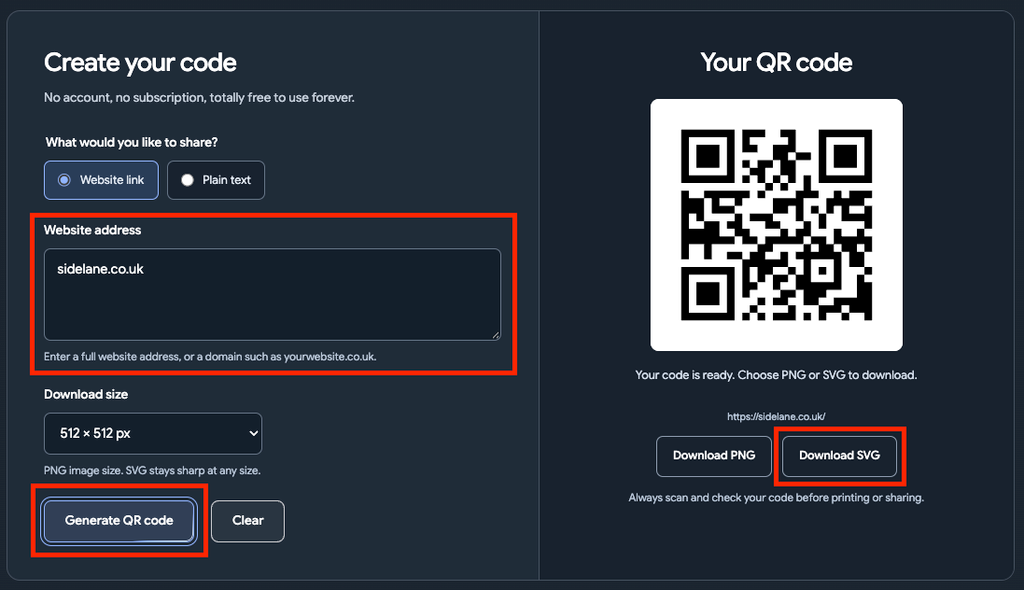
SVG files, also known as Scalable Vector Graphics, are the preferred option for print use. As it’s a vector artwork, this means the data in the file is created using mathematical formulas. You don’t need to worry about how or why though, all you need to know is that this means the SVG file can be scaled to any size, and the edges will stay nice and sharp. This means you can use the SVG file in your design software, scale it smaller to be on a business card, or bigger for use on an external banner for example – whatever the size, it will be perfect quality.
A PNG version could work, assuming the size options available suit your artwork, as this will be high-res at it’s original size. Complications arise when a PNG is enlarged, screenshot, or not linked correctly – and this can cause blurriness and pixelation on final artwork.
Keep the white border clear
The blank whitespace around a QR code is often called a quiet zone, or clear area. A standard QR code comes with this space on all four sides, at least four small squares of the code wide, this increases the readability of the QR code. A straightforward setup is black on a solid white background.
If you’re positioning the QR code over a coloured element, or an image, it’s best to make sure this quiet zone is left in the QR code, and it’s kept clear of nearby text, trim lines and creases.
You can, however, use the QR code in different colours in different situations. Maybe your brand colour is a contrasting colour to your design, or you’re using a dark QR code colour over a solid, pale background. You can edit the SVG once its downloaded, the white quiet zone can be removed, the black QR code elements can be selected and re-coloured in your design software – just make sure if you do change the colour, it scans correctly, following the steps mentioned next.
Print a proof at actual size
Once you’re happy with your QR code, you’ve downloaded it, recoloured if needed, and placed on your final artwork. Make sure you export your PDF using a print-ready export.
It’s best to take your final PDF and print a proof out at 100% scale, then scan the QR code with a couple of phones under standard lights, and check that it takes you the the correct link. You can also scan the QR code on the digital version to ensure the correct link is used prior to this.
Try and scan the code from a position where it would be scanned from in general, for example a business card is scanned within an arms length, and a poster may be scanned from a few steps away. This can impact the necessary size and space needed for the QR code in your final design.
If you can’t print the PDF at 100% scale, for example if it’s an external banner, we suggest you speak to your printer and ask if they can advise how the QR code will be when printed. 9 times out of 10, your printer will have processes in place and be able to check your artwork and let you know if your QR code will print correctly prior to printing.
Final words of advice
Hopefully this short guide gives you a better understanding of how QR codes work, and how to make sure they print as intended. They’re very useful tools when used correctly.
The most common uses I see are for business cards, linking to websites, or Google QR code review cards, which link to leaving a Google Business review for their business.
If you’re having any issues with any of the above, or something doesn’t quite make sense – feel free to send us a quick message via our facebook page, or send us an email/fill out our contact form, and we’d be happy to help you create the perfect QR code for you.